You can't buy data strength. You build it.
Google made data strength central at GML 2026. But it is not a setting you switch on. Here is what actually builds it: consent, server-side, and a warehouse.
Mark Rochefort•21 Jun 2026

Here at Measurelab, we work predominantly with the Google stack but that doesn't stop us using other tools. As there's not much documentation available in the public forum on how to implement Enhanced Ecommerce in Google Analytics using Adobe Dynamic Tag Manager (DTM) formerly know as Satellite, I think this blog post would be useful.
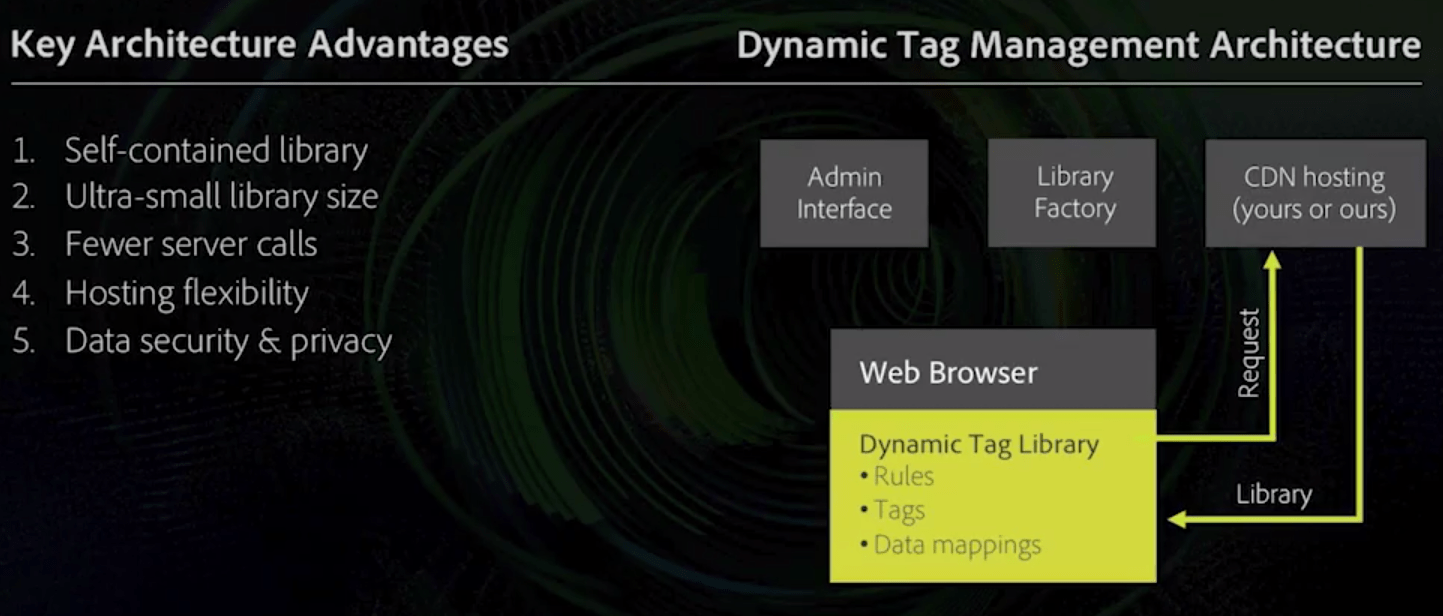
As good introduction to the tools itself, below there’s a useful overview of Adobe’s Dynamic Tag Management architecture, which is from their learning resource pages, which I highly recommend reading.
This guide is based on the assumption that you have a dataLayer implemented on your site, and more important, on your confirmation page. This would have all the ecommerce values you want to send to your GA property.
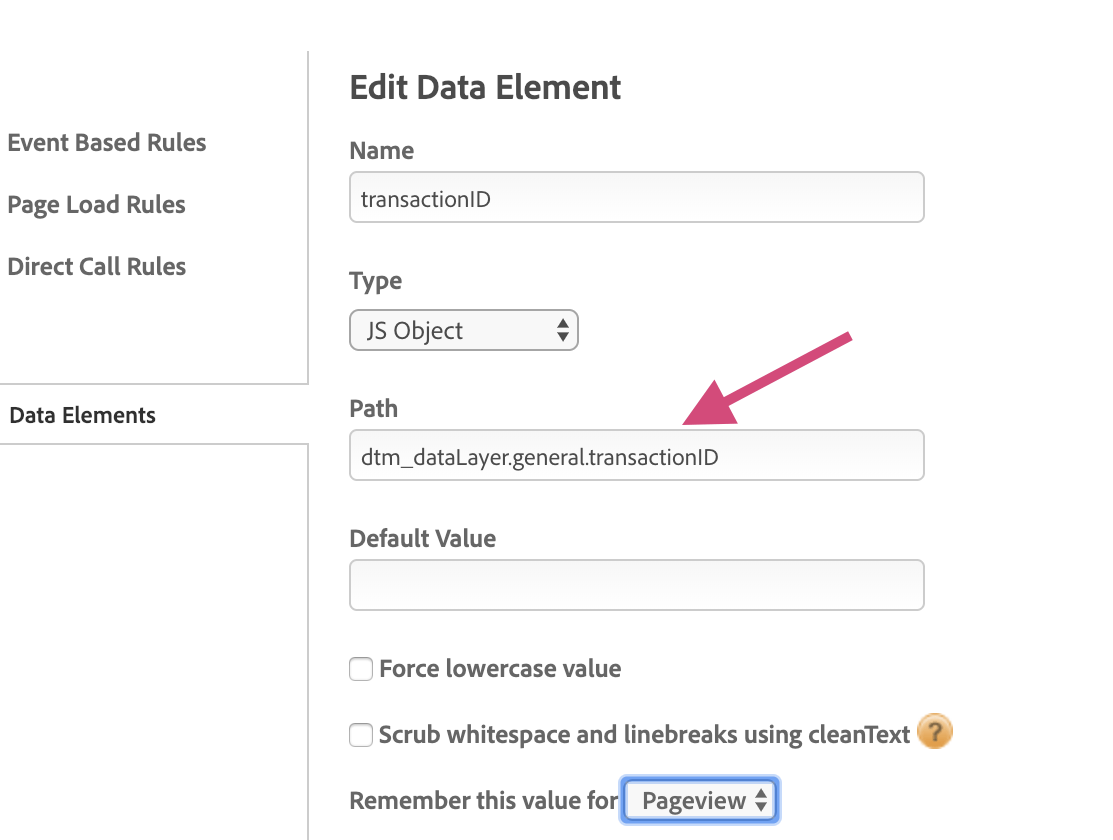
First things first, you need to create the data elements that will capture the dataLayer values you want to use to form your ecommerce purchase object. Data elements are the equivalent of variables in GTM, therefore you can create them once and use them as many times you need, which improves the efficiency of your tagging process. Below there’s example of how you can create a data element to capture the transaction ID from the dataLayer:
Secondly, you need to decide where you want your ecommerce tag to fire. This can be either a direct rule or a page load rule on the confirmation page. To this rule you will add your custom JS tag and use the data elements created previously.
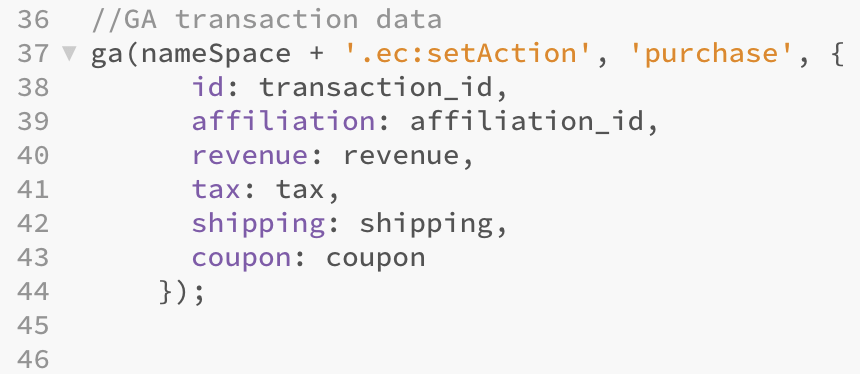
In this JavaScript tag, you will create variables that will be referencing the data elements created in the first step. To reference data elements in a custom tag in DTM you can use the following taxonomy: _satellite.getVar('Your data element name'). You will then use all these variables to build your ecommerce object which will be sending data to GA. Here’s a screenshot of how this might look like:
Note: If you are using a custom GA tracker name (which DTM normally creates by default), you need to add this to your custom HTML tag. To check your tracker name, go to your GA or UA Tool > Customize Page Code > Tracker Name > and you should see an alphanumeric string. You need to use this in all you ga() calls.
Second note: Unless you’ve disabled page view tracking in your GA tool, you’re most likely double tracking page views with the above solution. You can either disabled the page view tracking at the tool level, or you can prevent the standard page view tracking in your custom HTML tag by using: return false;
Finally, if you were wondering what are your debugging options for your DTM implementation you can use the DTM debugger chrome extension, this will print messages to the console in regards to your page view and event tracking from DTM.
If you have issues regarding your DTM/GTM tracking implementation, feel free to get in touch.
From GA4 implementation to server-side tagging and consent management — we'll make sure your data is accurate and complete.
Our instant analytics audit scans your GA4 configuration and flags what's missing, broken or misconfigured.
Google made data strength central at GML 2026. But it is not a setting you switch on. Here is what actually builds it: consent, server-side, and a warehouse.
AI expert Daniel Hulme, founder of Satalia, shares his journey from UCL PhD to entrepreneur, discussing AI, consciousness & deep tech.
Dara and Matthew chat with Juliana Jackson on her journey, product mindset, and how AI is shaping modern analytics.