The act of enabling the export from Google Analytics 4 (GA4) to BigQuery is actually a relatively simple process. However there are some parts of the Google Cloud Platform (GCP) setup that can trip people up, and the documentation from Google can be a bit vague. Without setting up the GCP correctly, your GA4 data will not be exported properly. So it's essential to make sure this is done from the very beginning as to not lose any historic data (as the GA4 data does not backdate in BigQuery!).
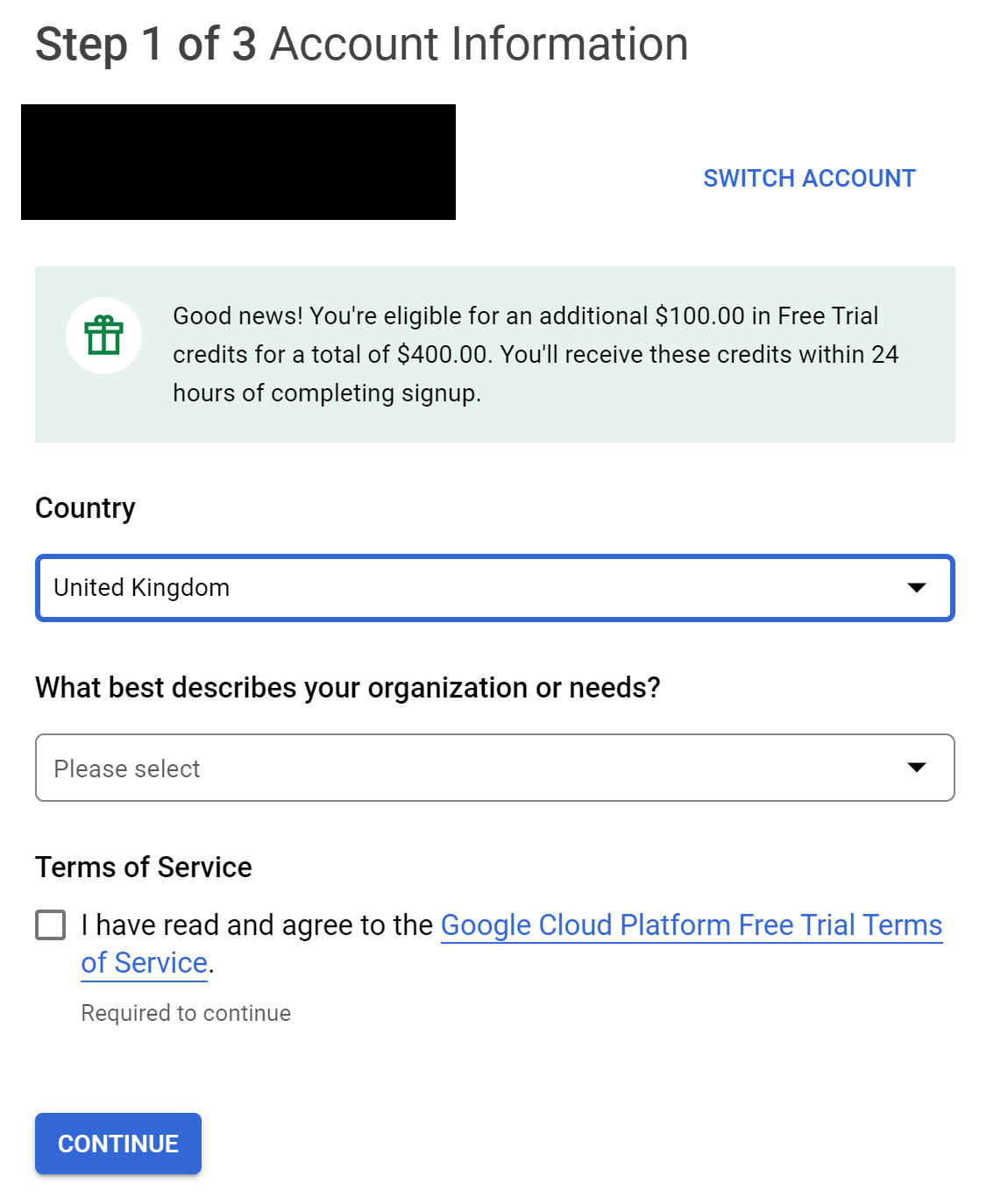
Head over to the GCP website and click the 'Get started for free' button. Sign in with your Google account, and fill in the country and description from the drop-down list.
You should also see some free credit when signing up at this step. Google changes this occasionally, but you can see I have $400 for free to spend over the first 90 days.
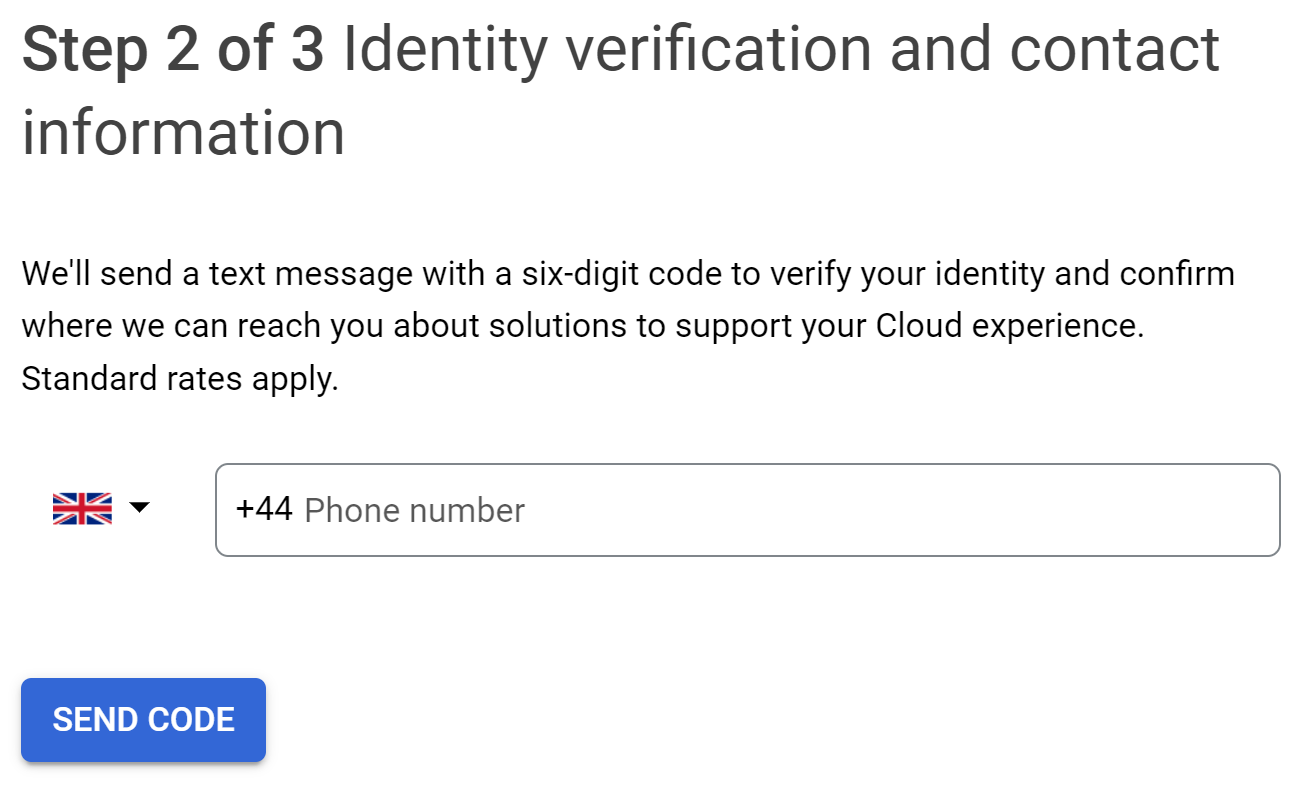
Click continue and then verify your identity using a phone number.
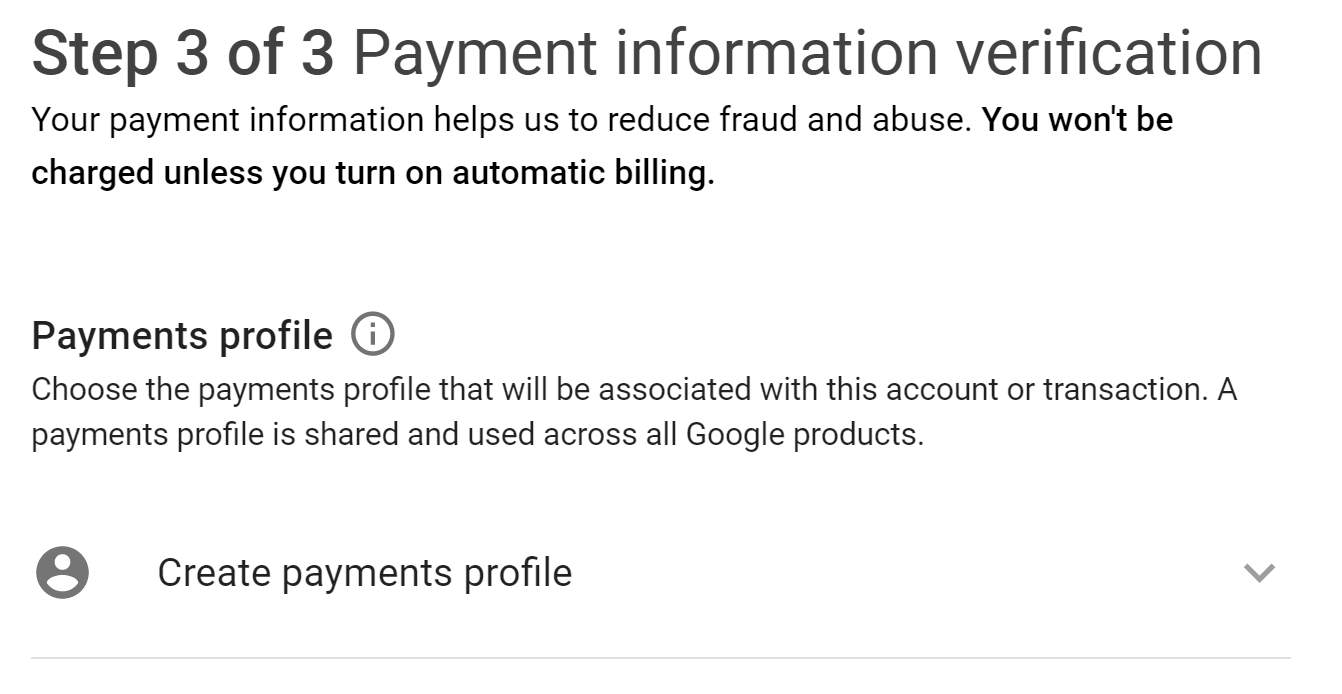
The final step is to create a payments profile which requires you to fill in all the fields on the screen.
Account type
Tax information (enter your company's VAT number here)
Name and address
Primary contact
Payment method
Once completed, you may have to verify the bank account - the method depends on the bank.
Create a project
A project in the GCP is essentially an organisational 'folder' of sorts. Google's definition is
A project organizes all your Google Cloud resources. A project consists of a set of users; a set of APIs; and billing, authentication, and monitoring settings for those APIs. So, for example, all of your Cloud Storage buckets and objects, along with user permissions for accessing them, reside in a project.
If you have followed the previous step in this process, you will already have a new project called "My First Project" which was set up automatically. You can use this project, just rename it by clicking the three dots in the top right corner of the screen and going to 'Project Settings'. As this will be for the GA4 data, I would suggest something along the lines of [company_name]_ga4_[ga4_property_reference] so our one would be something like "measurelab_ga4_demo".
You cannot edit the 'Project ID' or the 'Project number', so if that is an issue, you will have to create a new project altogether.
Enable APIs
To enable data to be shared smoothly from GA4 to BigQuery, there are a couple of APIs we would recommend setting up for this project.
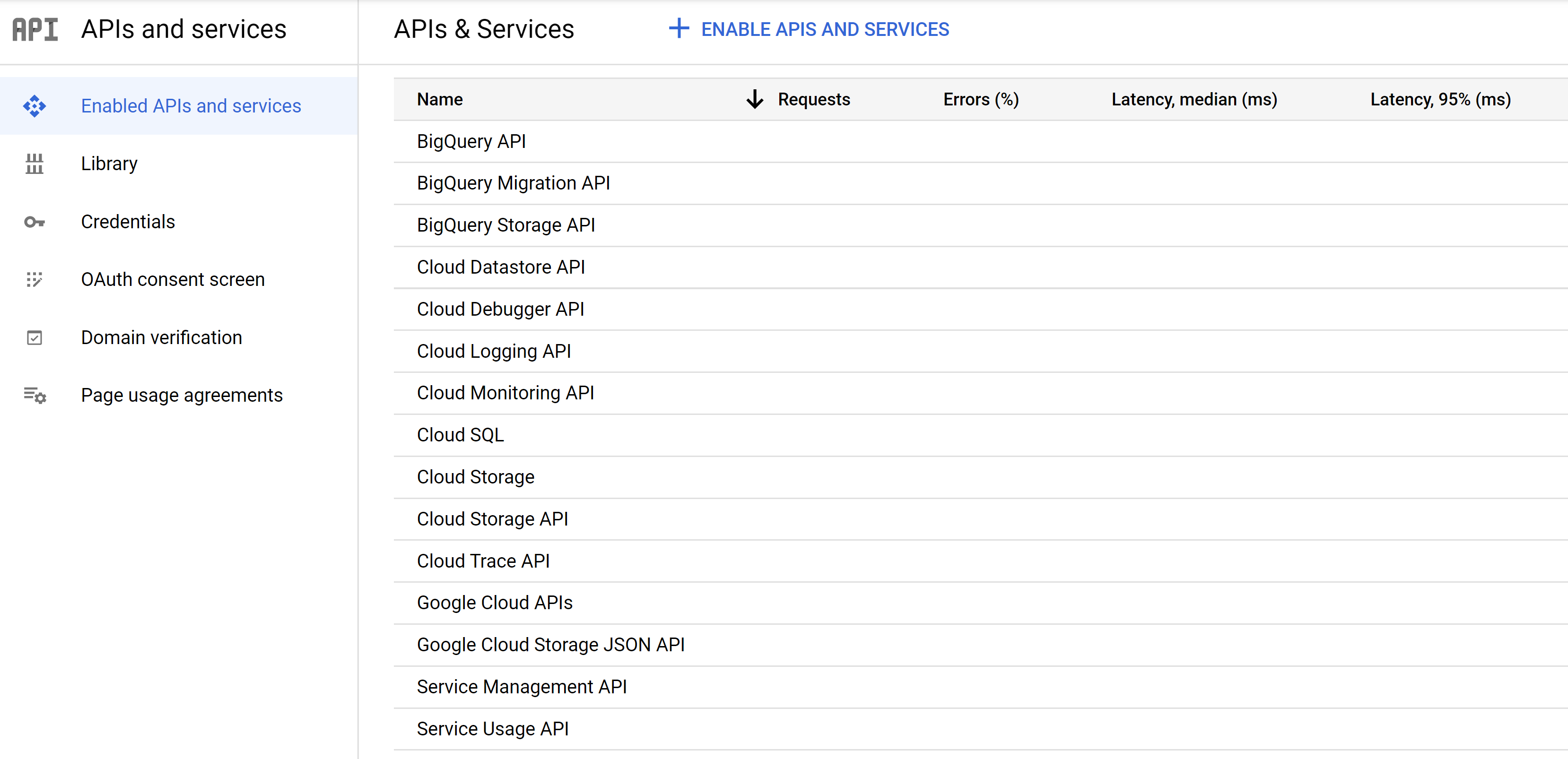
Open the left navigation panel and head to 'APIs and services' and then make sure you are on the 'Enabled APIs and services' page. Scroll to the bottom of this page to see all current APIs and services you have enabled for this project.
Need to connect your data?
Join marketing, customer and product data with tested models and documentation your team can use. Start with the sources needed for your question.
Click '+ ENABLE APIS AND SERVICES' at the top to select more APIs and services from the library. We will want to add three more APIs in here:
BigQuery Data Transfer API
Google Drive API
Google Analytics API
For each one, click 'ENABLE' and follow the on screen instructions.
Note: Check that the 'BigQuery API' is enabled - it should be by default, but double checking here can save time down the line! If it is not, go through the same process above and enable it too.
Set IAM permissions
Now we have a project, we can set the Identity and Access Management (IAM) permissions to allow people access to the project, and we can define what level or access they are allowed.
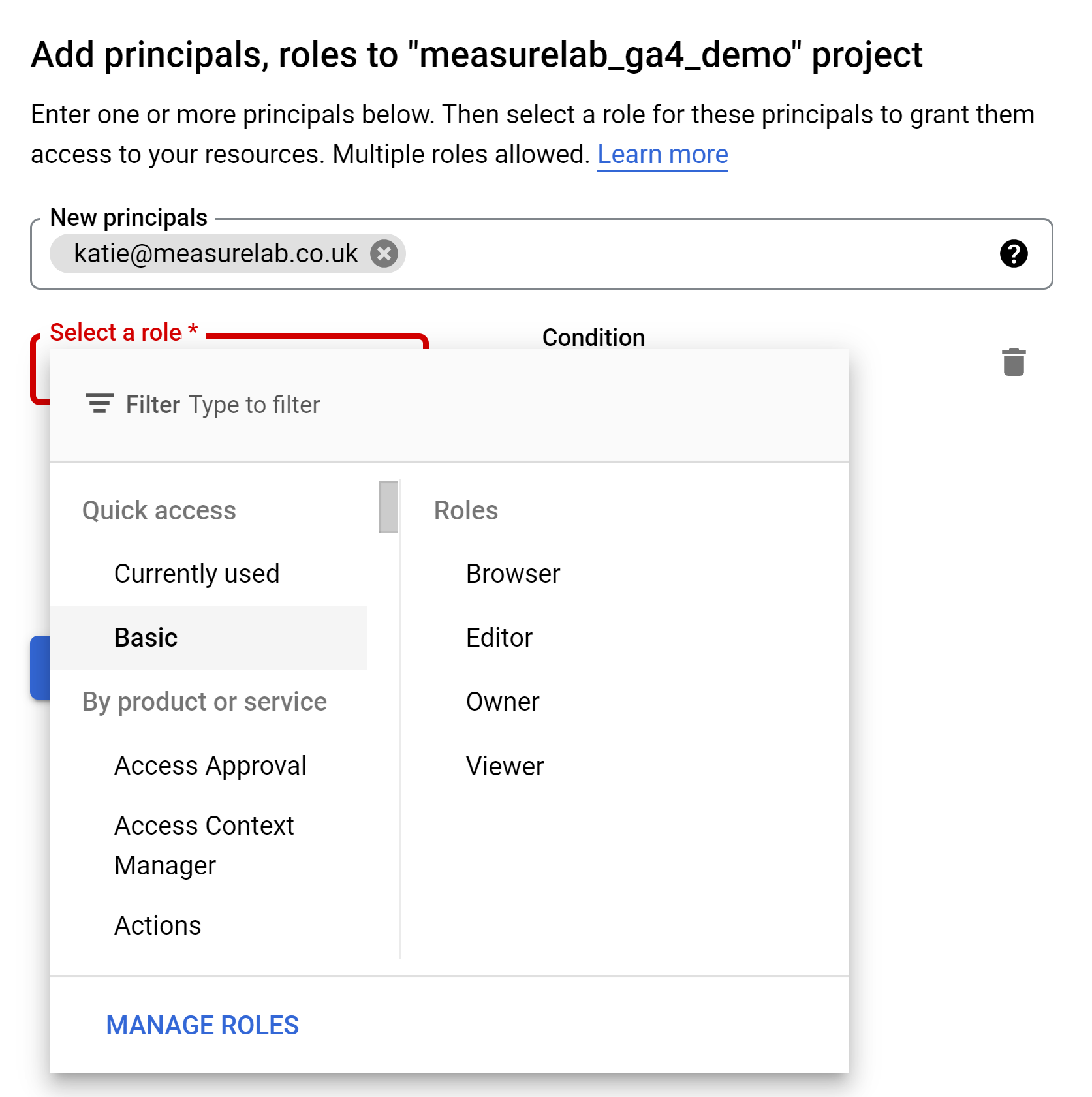
Open the left navigation panel and head to 'IAM and admin' and then make sure you are on the 'IAM' page. At the top of the page, click '+ ADD' and add the email address(es) of the people you want to grant access. The simplist role to give would be one of the Quick access > Basic ones.
We will also need to add two service account emails to enable the GA4 data exports. To do this, use the same process as above, but add the following email addresses at the 'Editor' level:
Click save, now BigQuery is ready to receive GA4 data!
Set up the GA4 to BigQuery export
Google has a pretty thorough walkthrough on how to enable the exports from GA4 to BigQuery that can be followed here. Note that if you are setting this up, you will need 'Edit' level permissions in both the GA4 property and the GCP project.
Make sure to pay attention to the data location you are choosing as this cannot be changed afterwards! For example, we would use 'eu-west 2 (London)' as we are based in the U.K.
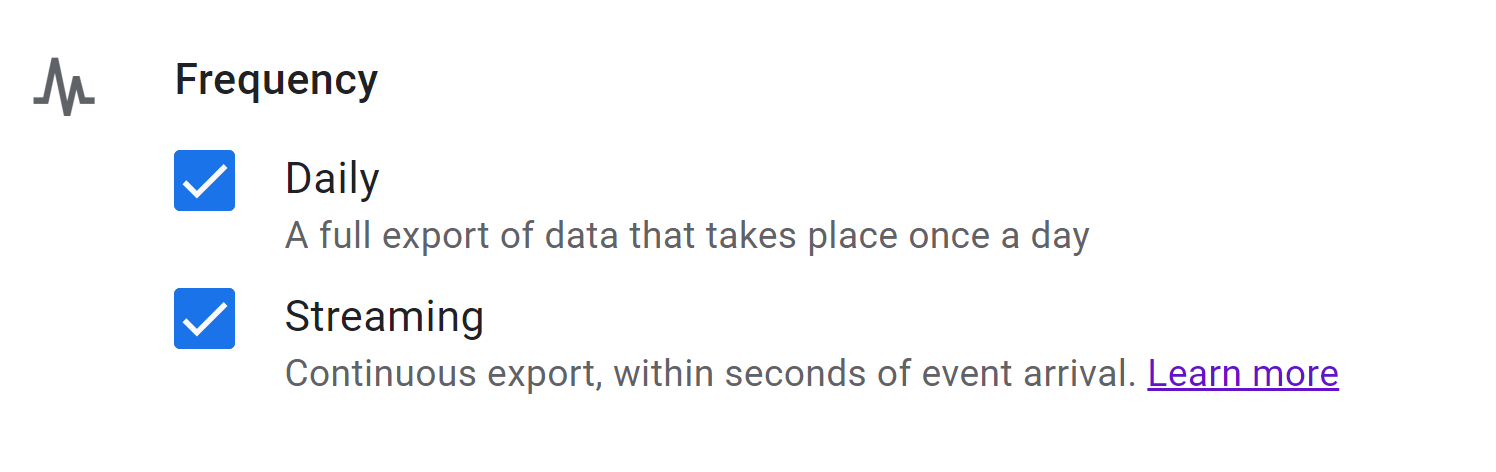
There are two export options for the GA4 data which can be enabled:
Daily - exports of the full day's data sometime in the morning (based on the time zone defined in GA4)
Streaming - intraday data (almost) realtime but only for the current day (based on the time zone defined in GA4)
We suggest always having the 'Daily' export enabled, and the 'Streaming' optionally if you have some plan for the data. It can always be enabled at a later date.
Once set up, you will have to wait at least 24hrs before the data will start appearing in BigQuery.
Please do get in touch if you want to discuss getting GA4 implemented, and the BigQuery exports enabled.
Need to connect your data?
Join marketing, customer and product data with tested models and documentation your team can use. Start with the sources needed for your question.