The problem with Agentic Analytics
An AI agent will answer any question about your data, confidently and often wrongly. Agentic analytics works only on a governed semantic layer. Here is why.
Mark Rochefort25 Jun 2026
Blog
Olade Honvo21 July 20236 min read

First of all, creating a new event keeps you safe from interacting with existing events that may be powering reports or other business-critical systems. It would be hard to list all the use cases, as there are many reasons why one would want to make use of the game changing feature in GA4.
First of all, creating a brand new event keeps you safe from interacting with existing events that may be powering reports or marketing campaigns. It’s a way to expand your data in GA4 without any risk.
Although it would be hard to list all the use cases, one obvious reason to use this feature would be when there is a need to quickly add a new event into the data where tech resources are not available, or limited. Basically, it could be used as a temporary fix to get something tracking, pending a more permanent update to the tracking code via Google Tag Manager (GTM) or developers.
Furthermore, GA4 is designed with app and web convergence in mind, it is easy to imagine that creating events via the user interface is by no means limited to web and can also be extended to app. Most web analysts or analytics consultants (including myself) can be very good at handling web implementation, but not so much when it comes to apps. Unlike before, we now have a powerful tool that helps us remove any blocker related to app development and new version releases.
Before we begin, one key element to mention is to ensure users have the required role in order to ensure tight control of events that are created. Users who can create events need to have either of the below following roles:
Creating a new event supposes the existence of an existing ‘source’ event which is already tracked in GA4. In order to verify the list of event that is currently tracked in a given GA4 property, please visit Admin > Events (at the property-level):
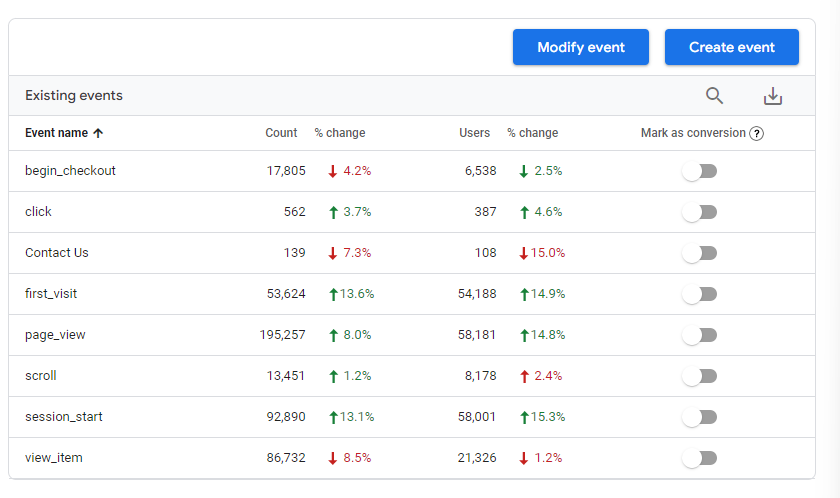
When clicking on ‘Create event’ you are first presented with a page that shows you all events that have already been created. Continue by clicking on ‘Create’ at the top, to be presented with the page below:
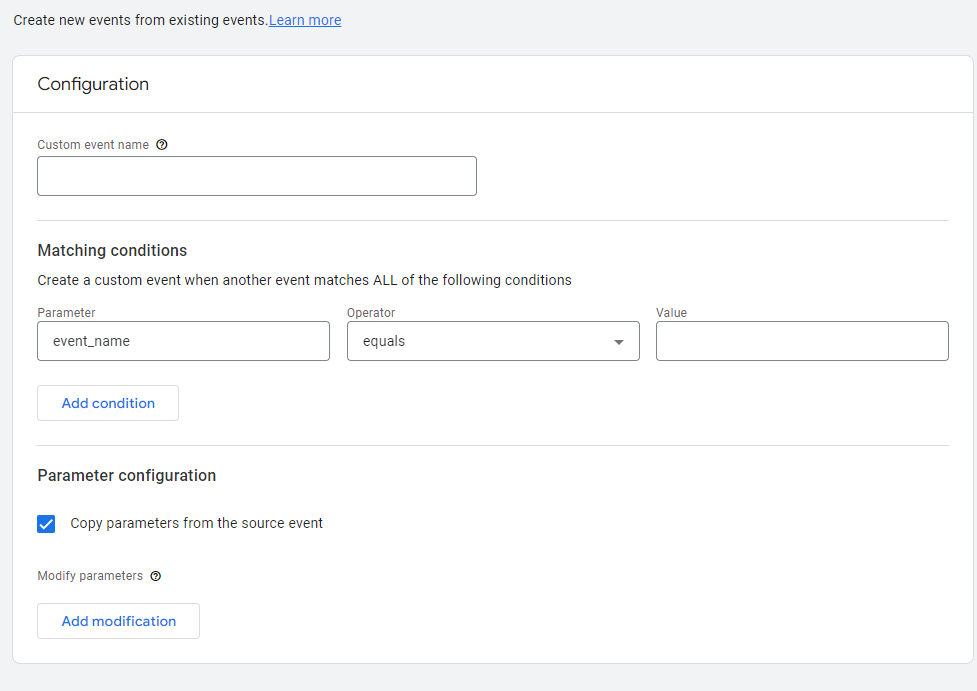
The next steps are as follows:
Further to that, you are also given the option to re-use any parameter of the existing event and set up the appropriate parameter configuration. In most cases, you’ll leave this checkbox ticked. For a detailed description and walkthrough on modifying events, please visit the blog “How to modify events in GA4” by Timothy Gorringe.
If you ever want to remove this new customised event, GA4 gives you the option to delete if you need to. To do so, you will find a vertical ellipsis at the top of the top right of the screen, click on it and choose ‘Delete’.
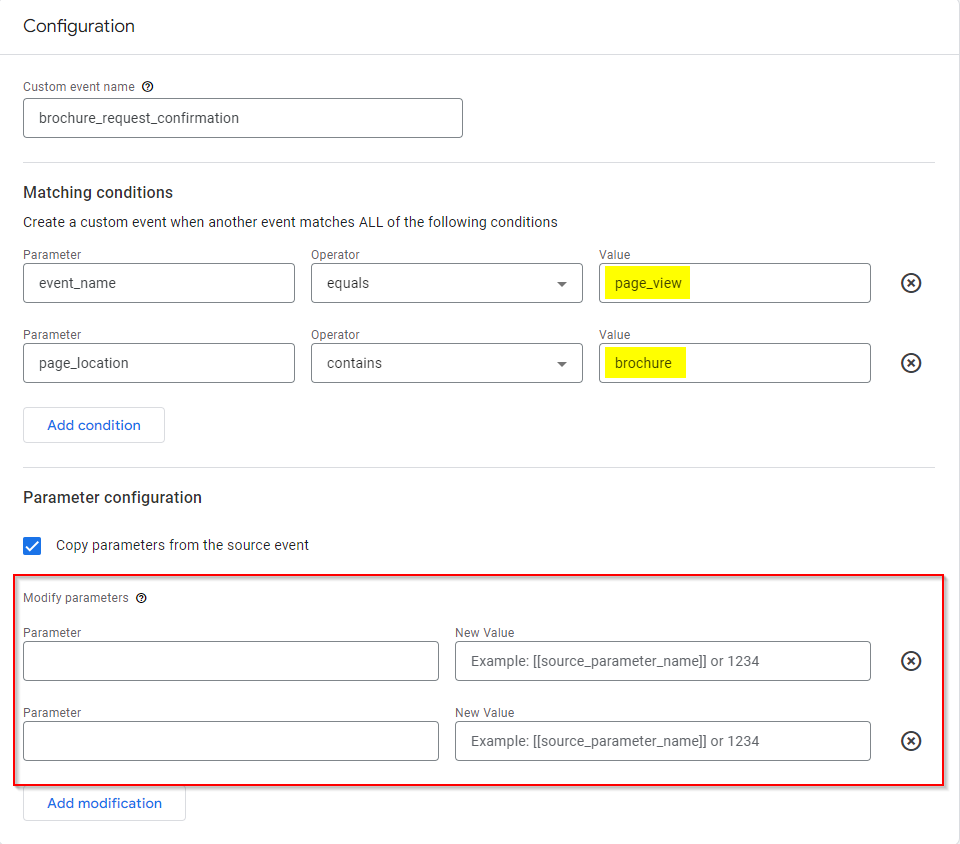
In my example, I would like to create a new event called “brochure_request_confirmation” whenever a user visits any of the following pages:
We investigate and fix collection, tagging and consent problems, with a record of what was tested and what remains uncertain.
For this, I will use the ‘page_view’ event as the source event, but only on pages where “brochure” is contained in the URL (i.e. in the page_location parameter).
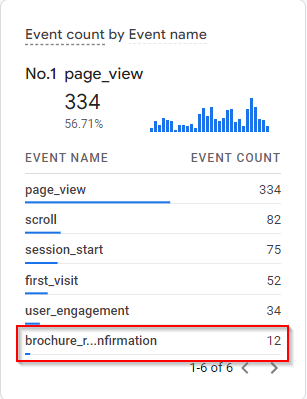
Based on this configuration (see screenshot below), my new event named ‘brochure_request_confirmation’ will be created for each and every page_view event where the page_location parameter contains “brochure”:
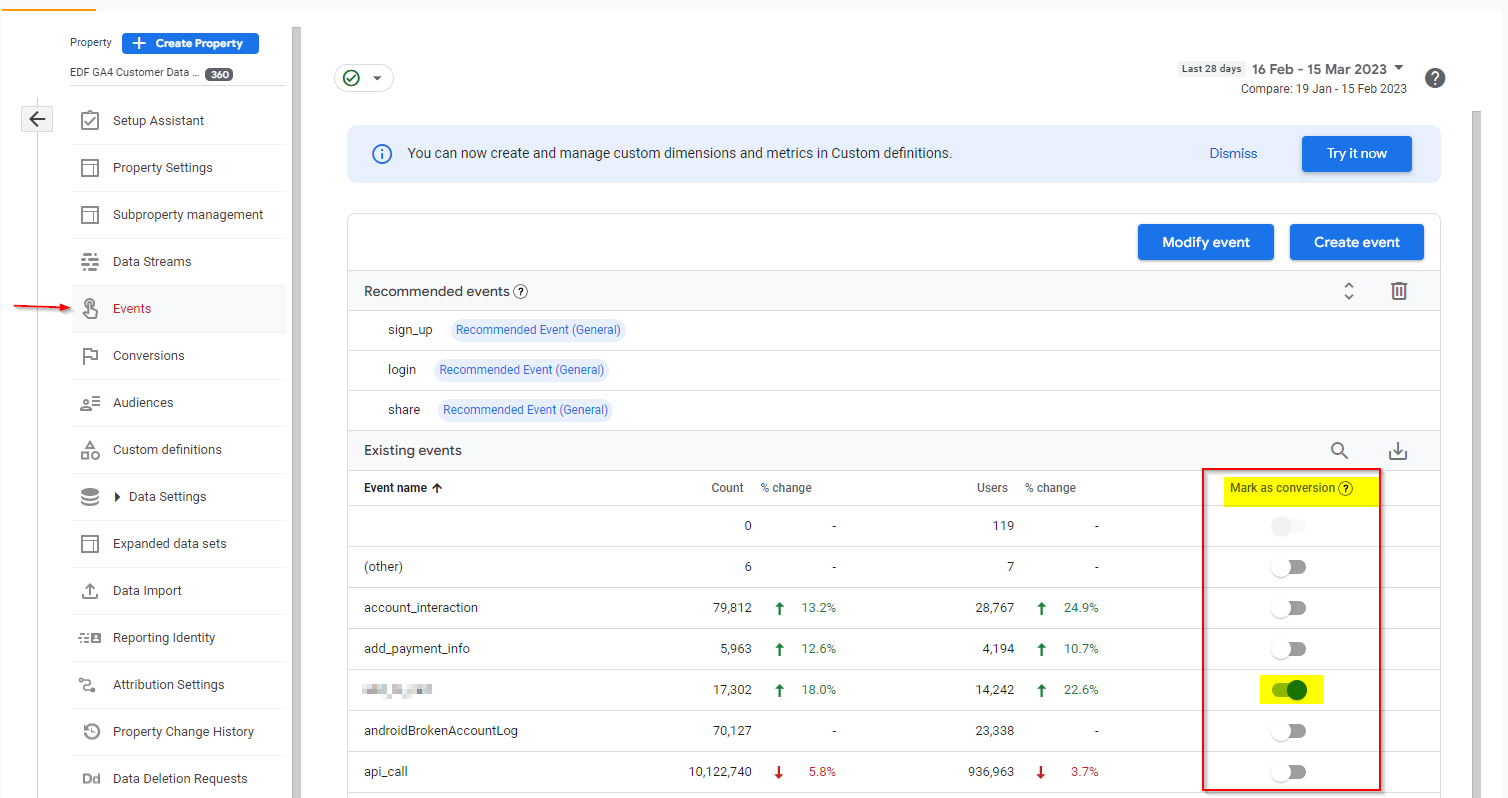
After creating your event, you can then optionally mark it as a conversion event. This will be possible the following day after you have created the event, when it shows in the ‘Events’ section in the admin screen where you can mark the event in question as a conversion by toggling the appropriate button:
However if you are unable to locate the event you have created recently, but still want to mark it as conversion, you can navigate to the ‘Conversions’ section in the admin screen, and click ‘New conversion event’. At this stage you can input the event name (please note it is case sensitive):
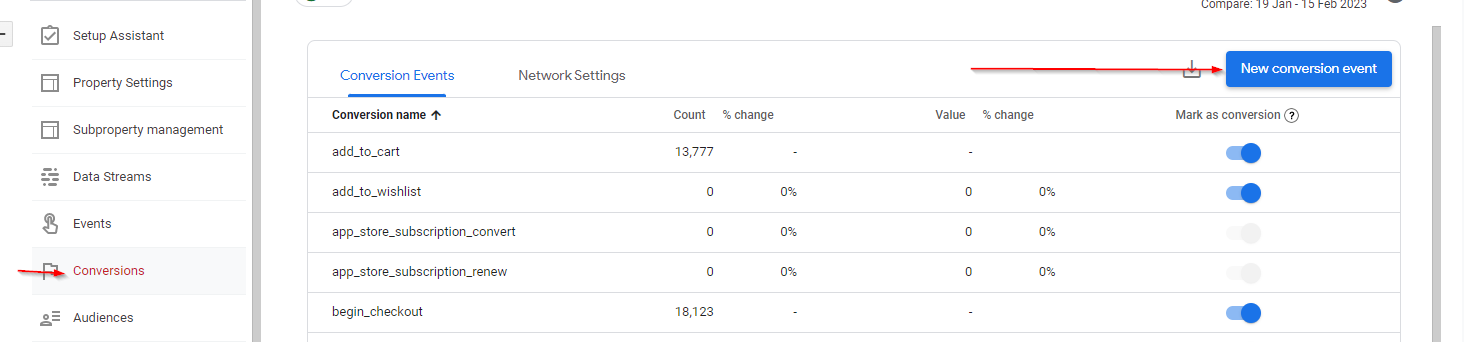
You may be wondering why or what is the added benefit of making an event as conversion? If so, do you remember ‘Goals’ in Universal Analytics? If you do, then marking this newly created GA4 event as a conversion allows you to create an equivalent of a Universal Analytics destination Goal!
Having said that, please note that Universal Analytics Goals are session-scope, unlike goal conversions in GA4 which are event-scope by default. That is, unless you change the counting method to “once per session”.
Testing that your new event is actually working as you expect is a non-negotiable part, especially when collecting/manipulating data.
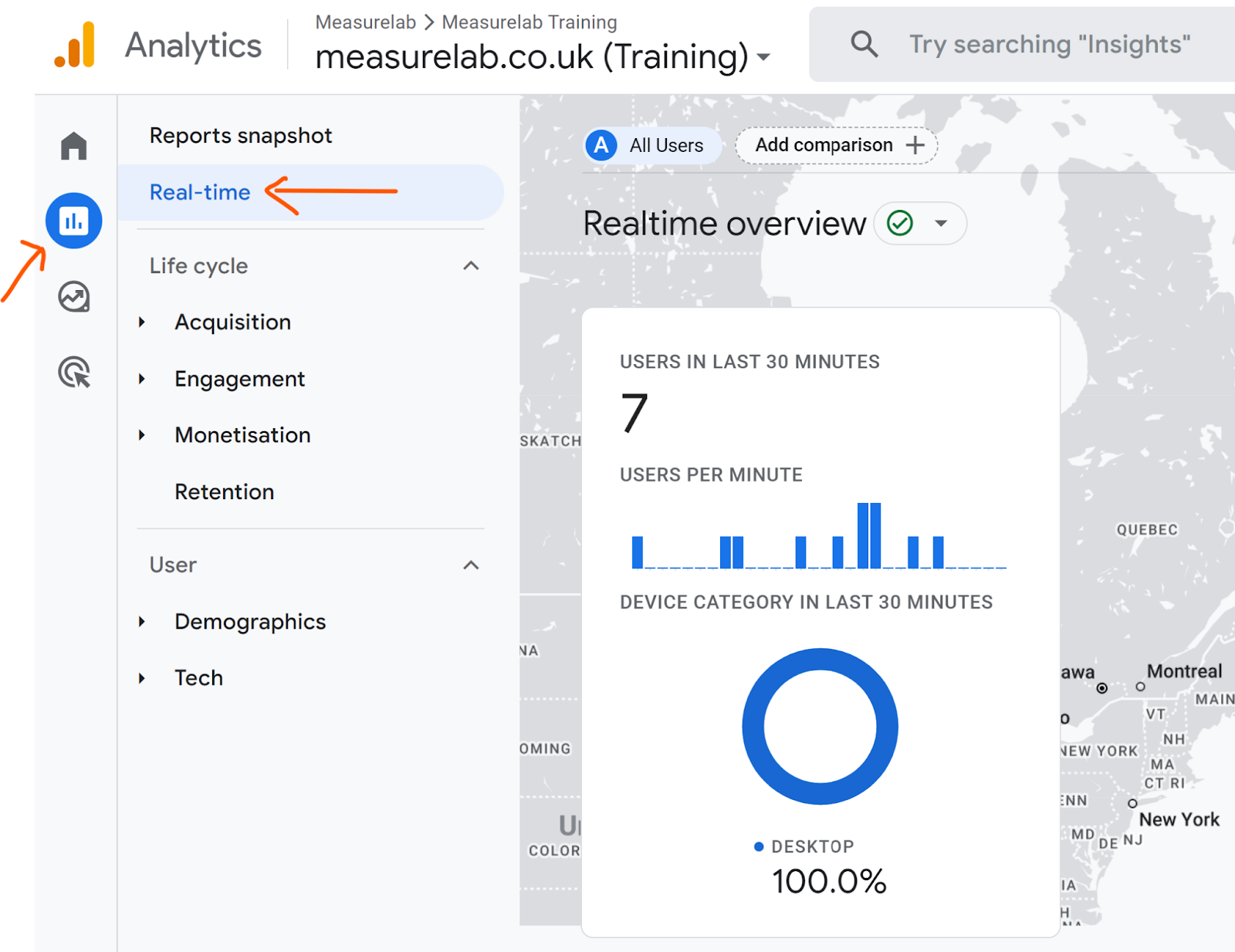
There are certainly many ways to ensure the new event is yielding the expected result. We will focus on one such way - using the real-time report. GA4 has a built-in real-time feature which allows us to see in near real-time each and every event that has been received and processed in the last rolling 30 minutes.
You will first need to log a few events that meet the requirements of the newly created event (i.e a page containing “brochure” in our example). Then inside of GA4, click on ‘Reports’ in the furthest left summary section, followed by a click on ‘Real-time’. The Event count by event name card is the one we are interested in. Assuming we have successfully created the event, this is where we would hope to see our newly created event.
As handy as it can be in speeding up the implementation of new events, it is important to be aware of some restrictions around event creation:
If you are reading this section, you have probably managed to get through each and every line above. Well done!
It is now your turn to experiment with the event creation tool via the GA4 user interface. Remember, each implementation requires testing, just to make sure you did it correctly, but on top of that, so you do not miss days of data.
I believe that this new feature in GA4 is a game changer, it grants non-technical minded users the ability to perform some minor and some major changes pending implementation from a technical specialist. If you have any questions about how to use this feature, or would like to chat about ways we can assist you in this, please get in touch.
We investigate and fix collection, tagging and consent problems, with a record of what was tested and what remains uncertain.
An automated first look at collection and consent signals visible on your public site. No account access needed.
An AI agent will answer any question about your data, confidently and often wrongly. Agentic analytics works only on a governed semantic layer. Here is why.
Mark Rochefort25 Jun 2026
Google made data strength central at GML 2026 and now measures it in Google Ads. But it is not a setting you switch on. Here is what actually builds it.
Mark Rochefort21 Jun 2026
UK universities face a deficit crisis. Student Recruitment Intelligence can transform Clearing from chaos to precision.
Steven Elliott6 Feb 2026