You can't buy data strength. You build it.
Google made data strength central at GML 2026 and now measures it in Google Ads. But it is not a setting you switch on. Here is what actually builds it.
Mark Rochefort21 Jun 2026
Blog
Alex Cirstea23 May 20183 min read
<span style="font-weight: 400;">This article describes how to integrate Google Analytics for Firebase (formerly Firebase Analytics) to a React Native app. </span><span style="font-weight: 400;">In order to do this, you need to use a JavaScript bridge called </span><a href="https://github.com/invertase/react-native-firebase"><span style="font-weight: 400;">RNFirebase</span></a><span style="font-weight: 400;">. </span>
This is lightweight layer sitting on top of native Firebase libraries for both iOS and Android which mirrors the Firebase Web SDK as closely as possible.
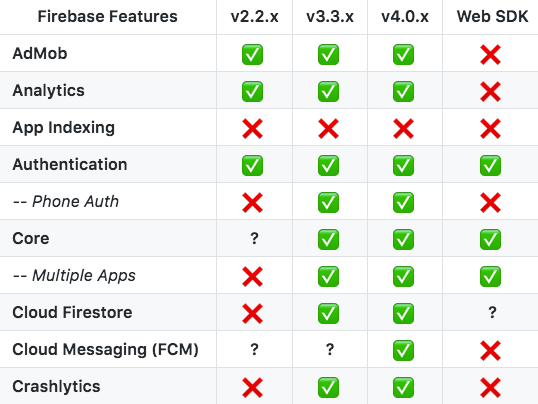
Even though the Firebase Web SDK library will work with React Native, it is mainly built for the web and some features are not available. You can find more details on the documentation page, but in summary, RNFirebase offers a faster performance over the web SDK and allows to hook into device SDKs which is not possible with the web SDK.
Here’s a screenshot of some of the features that are available in RNFirebase in comparison to the Firebase Web SDK:
In order to add Firebase to your React Native app, you need to create a Firebase project and then follow the steps for both Android and iOS. Once you have Firebase added to your app, you can start adding custom tracking. The below code examples have been added to the app.js file in my React Native project folder.
1) Setting the current screen name
setCurrentScreen(name)
Sets the current screen name, which specifies the current visual context in your app. This helps identify the areas in your app where users spend their time and how they interact with your app.
Example: firebase.analytics().setCurrentScreen('home');
2) Setting User Properties
setUserProperty(name, value)
Analytics automatically logs some user properties; you don't need to add any code to enable these. If your app needs to collect additional data, you can set up to 25 different Analytics User Properties in your app. You can analyze behaviors of various user segments by applying these properties as filters to your reports.
Example: firebase.analytics().setUserProperty('userType', 'developer');
Note: This feature must be used in accordance with Google’s Privacy Policy.
3) Logging an Event
logEvent(name, params)
Logs an app event. If your app needs to collect additional data, you can log up to 500 different Analytics Event types in your app. Be aware of automatically collected events.
Example: firebase.analytics().logEvent("buttonPressed");
Debugging Firebase Analytics
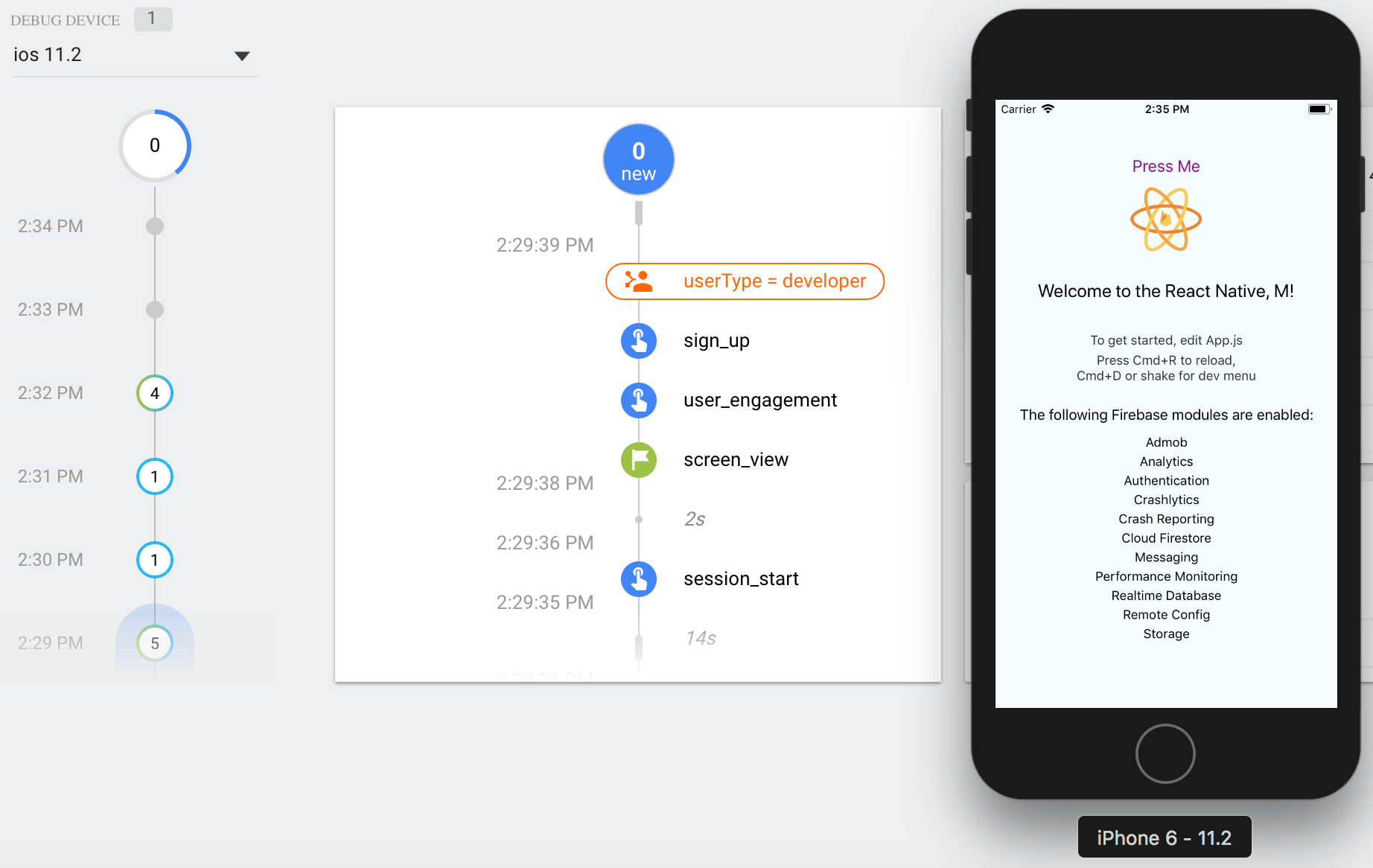
The events recorded are not automatically sent to Firebase. Instead they are cached and periodically sent to the servers. You can however enable debug mode in Firebase for both Android and iOS.
For Android devices you have to run the following command:
adb shell setprop debug.firebase.analytics.app <package_name>
For iOS you have to pass the following argument in Xcode:
-FIRDebugEnabled
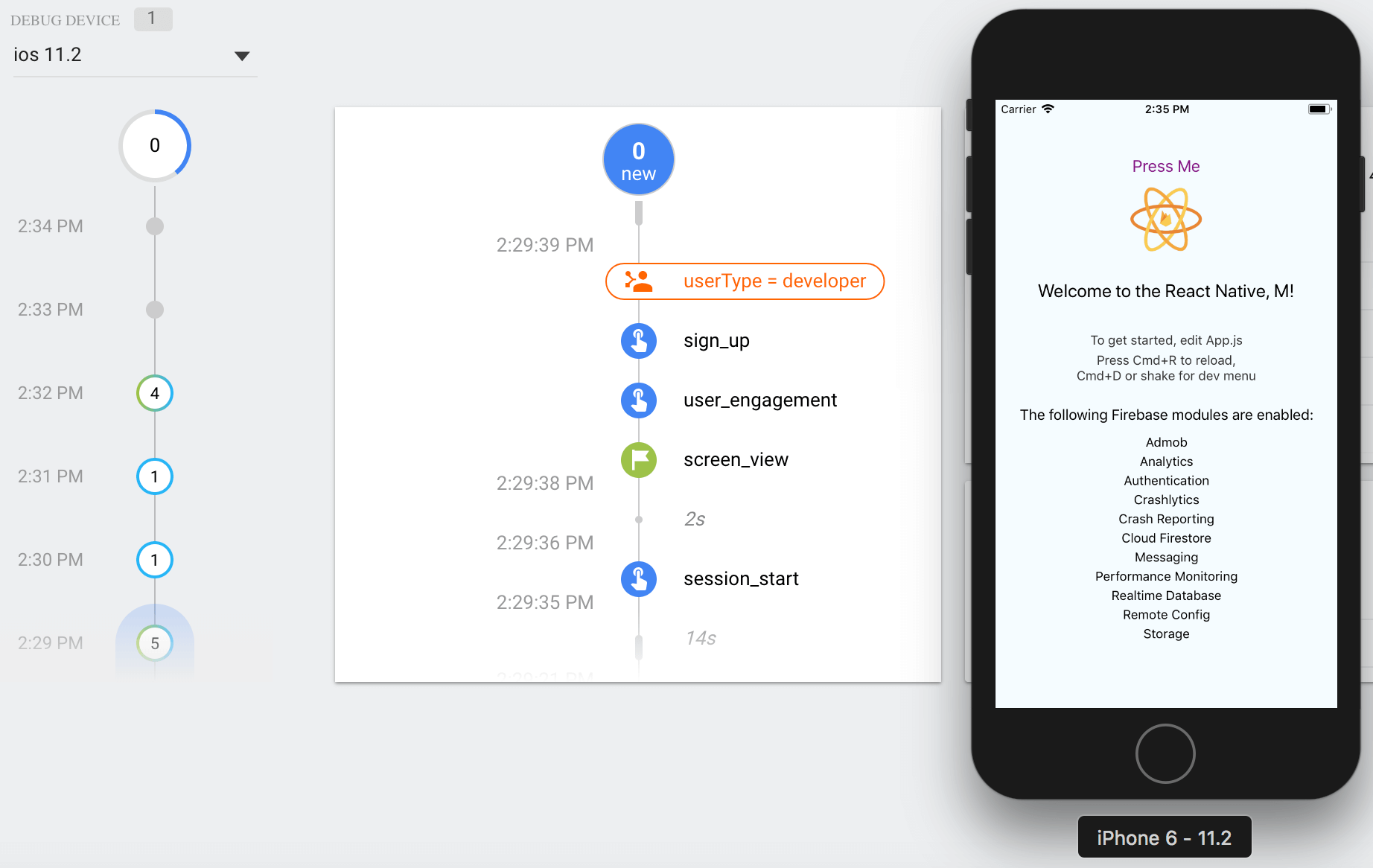
After this step, you should be able to see events in the Firebase console under DebugView. At this point you should have default Firebase tracking implemented and also some custom events being logged to your Firebase project.
We investigate and fix collection, tagging and consent problems, with a record of what was tested and what remains uncertain.
An automated first look at collection and consent signals visible on your public site. No account access needed.
Google made data strength central at GML 2026 and now measures it in Google Ads. But it is not a setting you switch on. Here is what actually builds it.
Mark Rochefort21 Jun 2026
Dara and Matthew recap 2025 with 12 top highlights, AI, analytics, and the best moments on The Measure Pod.
Will Hayes19 Dec 2025
AI expert Daniel Hulme, founder of Satalia, shares his journey from UCL PhD to entrepreneur, discussing AI, consciousness & deep tech.
Will Hayes28 Nov 2025